VPN Configuration
By default, administrative users (Ollie Beenham, David Lamb, Jan Lunn) will have access to all resources available on the network via VPN. Member users will need to request a resource be allocated to them for remote access.
In some situations, it may be necessary for you to access the SET network from home. To enable this, we have configured a zero-trust VPN setup that integrates with your Single Sign On profile.
Assuming your resource has been allocated and you have been given an address to access it on, you can use the following guide
Logging In
Before you do anything, you will need to log into the VPN provider with your Single Sign On identity. When visiting your user portal (https://l.ljmu.dev/me), you will see a section called VPN. Simply click the Pangolin icon, and log in with single sign on.
Downloading the VPN client and logging in
In order to access your resource, you will need the VPN client on your machine. Pangolin has a client available for most platforms, and you can download it at the page below.
Pangolin DownloadsDownload the VPN client for your platform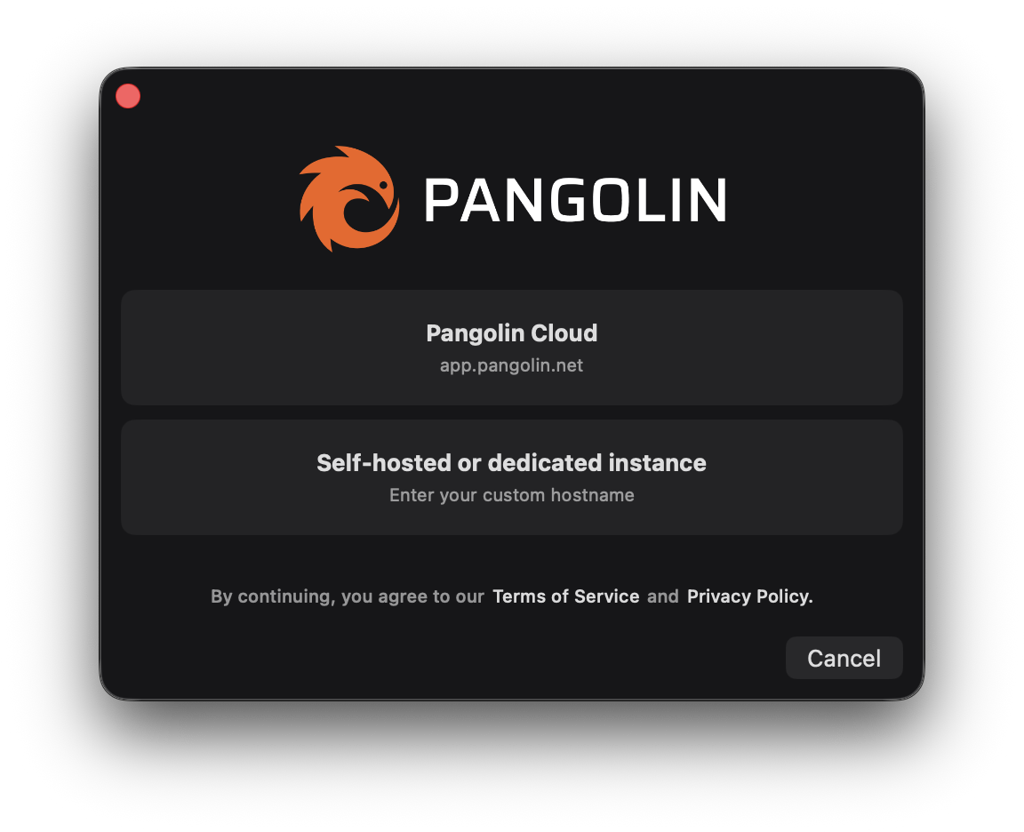
Once the client is downloaded, you will be prompted to log in.
Select self-hosted or dedicated instance and enter the following URL:
https://proxy.beantech.uk
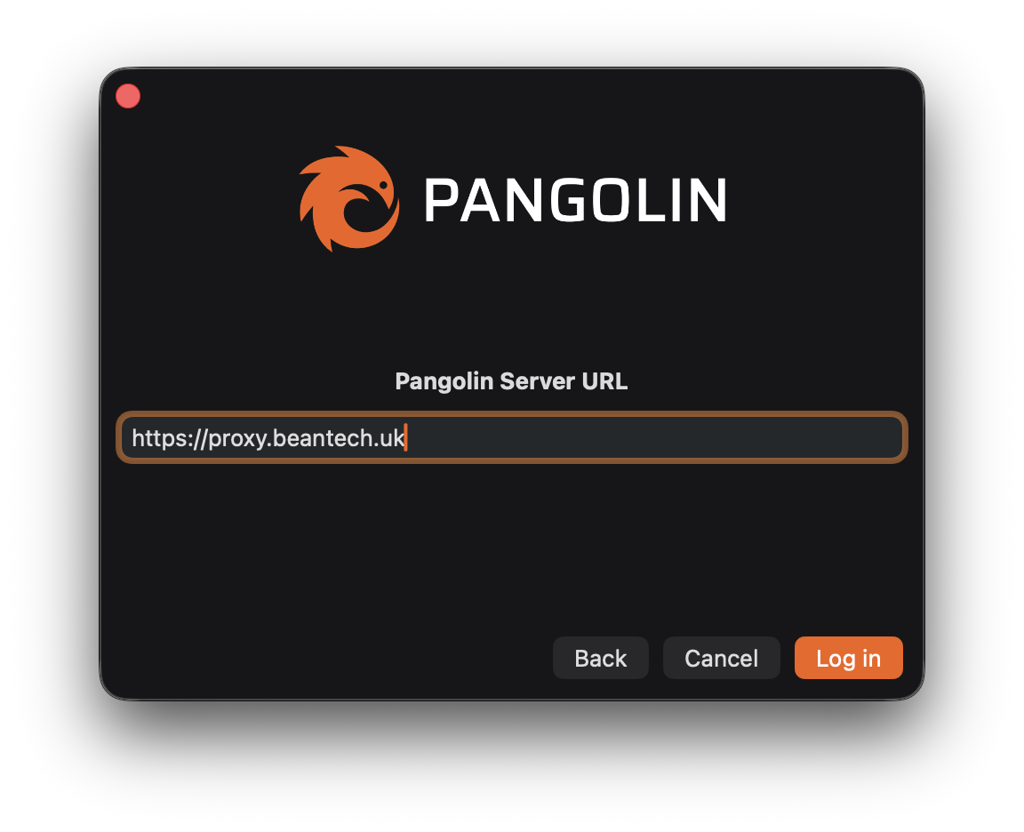
When you click login, a browser window will open asking you to authorise your device.
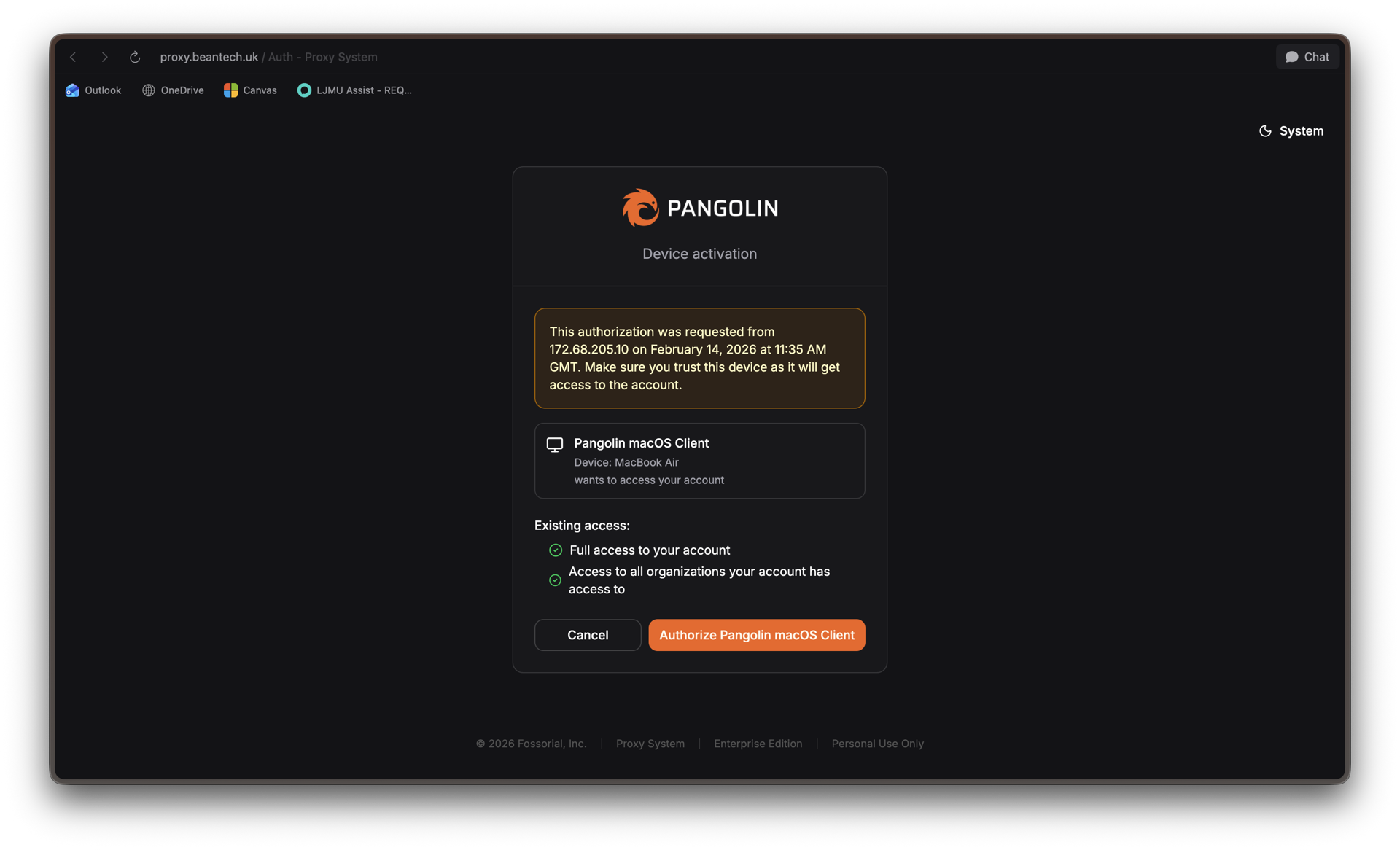
Once you authorise, you will be able to log in to the VPN client and access assigned resources on the SET network.
If you need any support with this, feel free to get in touch.
Help us improve this content
Notice something that could be clearer? We’d love your help. If you spot a technical error or a simple typo, please feel free to jump in and fix it. You can also suggest improvements or report bugs by opening a GitLab issue.